The start page
The editor opens on the start page when no project is open. It is the Start tab of the document area; you can bring it back at any time with Help › Start page, and it shows again when you close the project.
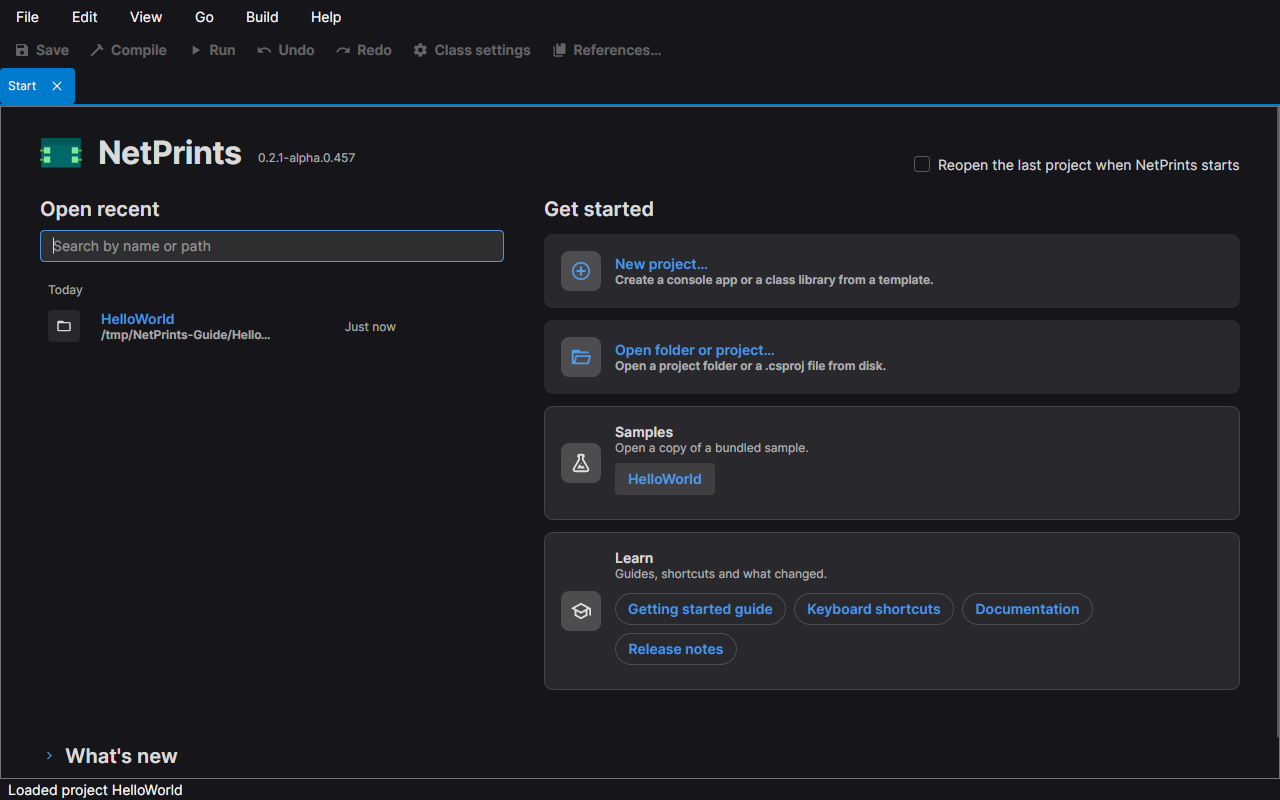
Open recent
The list on the left holds the projects you opened before, newest first, under the headings Pinned, Today, This week, This month and Older. Each row shows the project name, its folder and when you last opened it. A project whose file has been moved or deleted is marked Not found.
- Click a row to open the project.
- Type in the search box to filter by name or path. Press Down to move into the list; Enter opens the selected row, Ctrl+P pins or unpins it and Delete removes it from the list.
- The pin button keeps a project at the top of the list. Pinned projects are never dropped; the list keeps the 20 most recent unpinned ones.
- The remove button takes a project out of the list. It does not touch the project's files.
The list is kept between runs. Tick Reopen the last project when NetPrints starts at the top right to skip the start page the next time. If the last start did not finish opening that project, the editor does not try again and the start page says so.
Get started
-
New project… opens the New project dialog: choose a template (a Console app, which starts with a
Programclass and an emptyMainthat builds and runs at once, or a Class library), a name and the folder to create it in. The dialog says where the project will be created, and Create is enabled when the name and the folder are valid.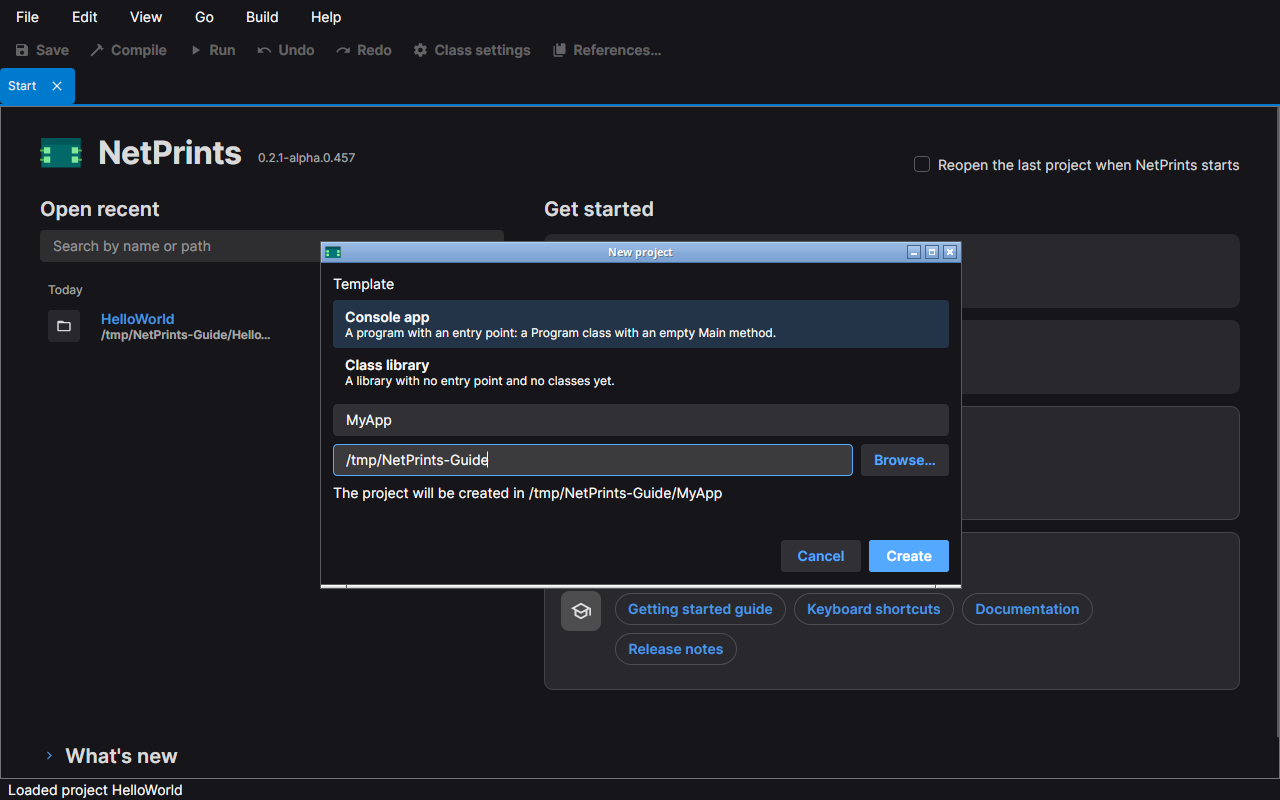
-
Open project… opens a file picker for a
.csprojfile. Open folder… opens a folder picker and opens the one.csprojthe folder holds; a folder with none or several shows an error. You can also drop a.csprojor such a folder on the window. -
Samples lists the samples that come with the editor. A sample opens as a copy: the dialog shows the folder the copy goes in, Change… lets you pick another, and Copy and open makes the copy and opens it. The bundled sample itself is never changed.
-
Learn links to the getting started guide, the keyboard shortcuts sheet (it opens in the editor), the documentation and the release notes.
What's new
The What's new heading at the bottom folds out the notes for the version you are running.
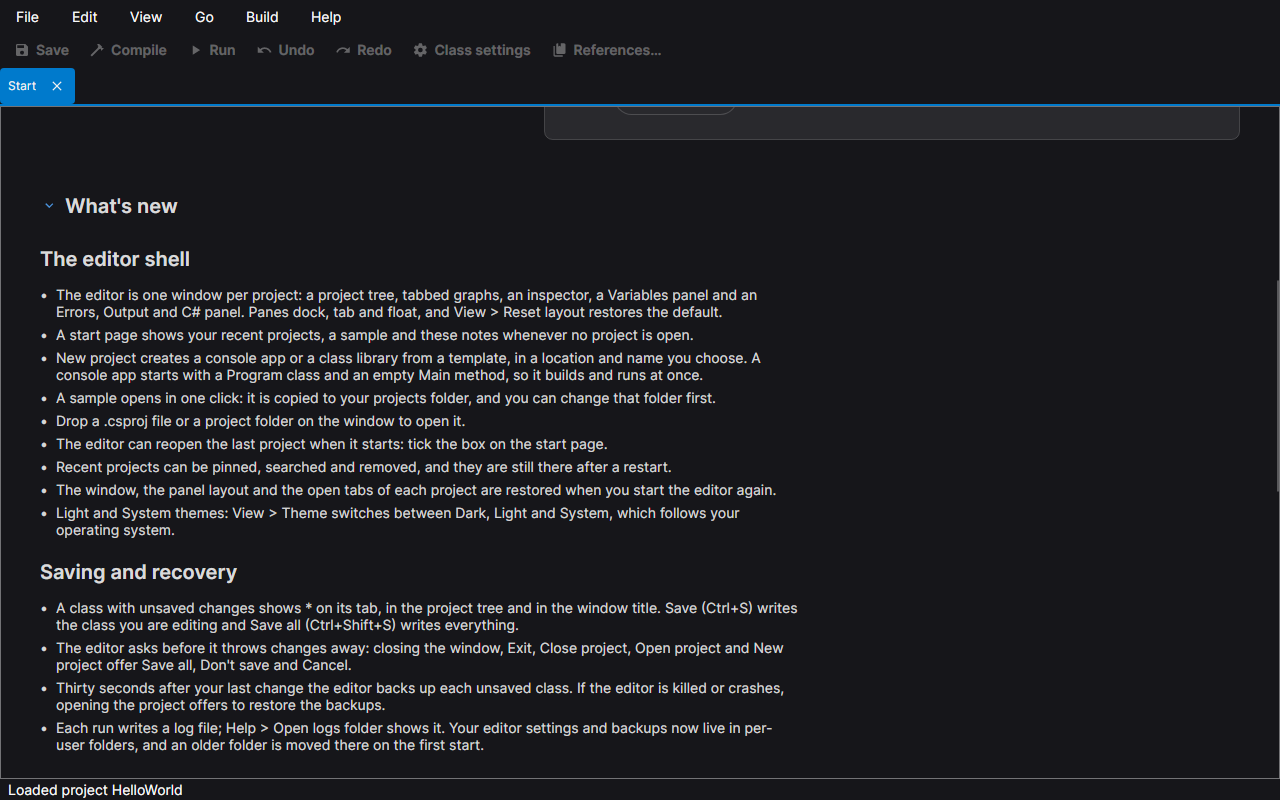
From here
Open a project and the window changes to the layout described in The editor window. For what a project is on disk, see the Projects guide.